Client presentation: a ten-minute product tour
Use a separate client account and open this guide at /docs. Click Print / Save PDF for a handout. A local address works only on the presentation computer; give remote clients the hosted HTTPS address.
| Time | Show | Explain |
|---|---|---|
| 0–2 min | Homepage and Smart Money preview | Choose the exact market; read source, timestamp and coverage before interpreting the pipeline. |
| 2–4 min | Smart Money → instrument chart | Inspect buyer/seller measurements, gainers/losers, candles and FVGs. Price breadth is different from executed order flow. |
| 4–6 min | Model selector | Compare QuantTerminal and Kronos on the same instrument and completed candles. Show HOLD and feed-paused states too. |
| 6–8 min | India Desk and Strategy Lab | Show session reports, rupee risk arithmetic and historical testing with fees/slippage. |
| 8–10 min | Signal subscription and support | Explain requested assets, approval, one active setup per asset, stopping alerts and support. |
Say: “This is a research workspace. We show where data comes from and whether it is fresh. Models provide conditional analysis; they do not guarantee a price move or place an order merely by displaying a signal.”
Keep admin, subscriber records, pairing QR codes, credentials, private logs and source control outside the shared browser window. Do not demonstrate real messages or trading orders unless separately authorised by the recipient/account owner.
Back to contents ↑How the two models connect
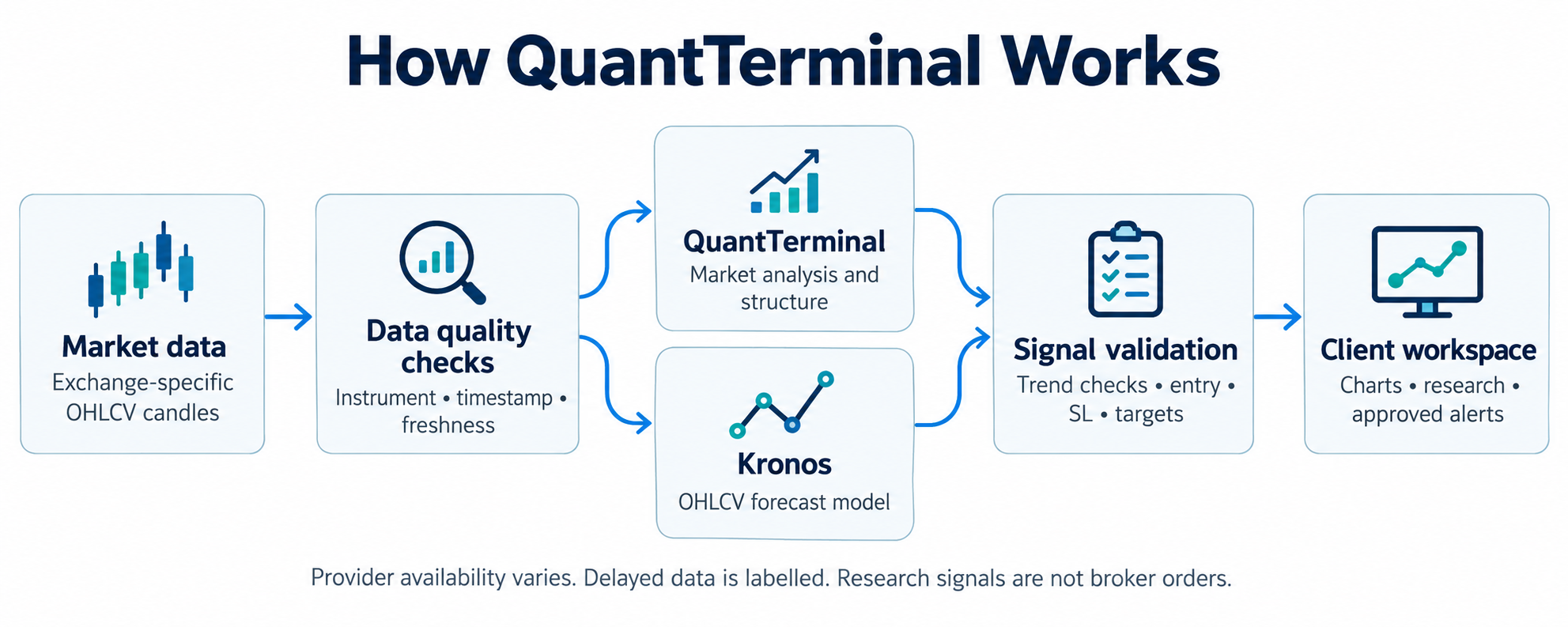
Both models start from the chart's selected instrument, venue and completed OHLCV candles (open, high, low, close and volume). They are alternative analysis engines, rather than one model training the other. Selecting both asks both engines for a view; a directional combined result requires agreement. Failed engines or insufficient data can produce HOLD or an unavailable result.
| Engine | What it does | What the client sees |
|---|---|---|
| QuantTerminal | Market analysis and structure; the fast mode uses local calculations. Other configured analysis paths may use intelligence providers and available market context. | Direction or HOLD, supporting structure and conditional levels. Availability depends on the selected path and configured provider. |
| Kronos | Runs an OHLCV time-series forecast from completed candles. It does not consume the displayed order book as its input. | Model direction/forecast with trend validation and entry, stop and target calculations when eligible. Model installation and healthy candles are required. |
After analysis, trend/structure checks can block a counter-trend entry. Entry/SL/targets describe a tracked research setup, not a submitted broker order. A persistent asset lock retains that setup across refreshes, engines and timeframes until a confirmed terminal outcome. Partial targets update the same setup. Delivery additionally requires the user's requested assets, administrator approval and an enabled matching monitor.
The illustration is a product workflow, not deployment infrastructure. Actual source labels and availability on the chart take precedence over this overview.
Back to contents ↑Where the data comes from
| View or market | Source/path | What to verify |
|---|---|---|
| Crypto model candles | Coinbase, or explicitly selected Binance Spot / Delta India contracts | Same venue and exact spot/perpetual symbol; completed candle time. |
| Hyperliquid metals model charts | Hyperliquid named Gold/Silver perpetual contract | Perpetual contract, not spot XAUUSD or COMEX futures. |
| Spot metals / Forex Smart Money panels | Named public quote/candle provider shown in that panel | Bid/ask, instrument, timestamp and stale status. This panel is distinct from the model feed. |
| Indian model charts | Private authenticated Upstox candles for the operator; Yahoo indicative history for public views; Dhan when separately configured | Read the chart source and session status. The operator Upstox connection is private; public/client redistribution requires applicable permissions. Yahoo remains indicative. |
| India Desk | Referenced exchange/public reports and source-labelled quotes | Report date, expiry, session and whether the report is unavailable. |
A 24/7 workspace does not mean NSE/BSE trade 24/7. Outside regular Indian hours the last-session candles remain visible and new live predictions pause. Holidays and special sessions may require exchange-calendar verification. Missing data is not zero activity. No source is described as unlimited or guaranteed uninterrupted.
Back to contents ↑1. Start here
Open the website address given by your operator. Explore public research or use Sign in → Create account. Use your own account and a unique password. Read /terms, /privacy, /risk-disclosure and /grievance before providing personal information. Never share passwords, OTPs, API keys or private subscription-management links.
The entry tour starts with the Smart Money execution pipeline, then Market Heatmap and Whale Orders. These previews use provider data and disclose missing or stale feeds. Use the numbered steps to jump between charts. The tour advances automatically every three seconds; Pause stops it for closer inspection. Reduced-motion preferences disable automatic motion. Fit/enlarge the pipeline and scroll to see the whole chart. For guests, clicking a chart or Try opens signup and retains the intended workspace. Closing the tour allows public browsing; Show product tour restarts it from Smart Money.
The website is a research tool. Model signals are not actual broker orders or promises of profit. There is no connected subscription-payment checkout; signup does not start a paid subscription.
Back to contents ↑2. Understand prices
Check instrument, venue, currency, interval and exchange timestamp. Binance BTCUSDT differs from Coinbase BTC-USD. Gold/Silver perpetuals differ from spot and dated futures. Nifty's index value differs from its futures/options prices.
Unavailable means verified data was not returned. Delayed/indicative data is not certified exchange-live. A fresh page load does not make an old exchange quote live. Compare the same venue, instrument, interval, session and adjustment basis. Closed markets have no new trades.
Reliance had a 1:1 bonus with ex-date 28 October 2024. Do not manually halve an old price to create a current quote. Verify the dated exchange/provider quote and adjustment basis.
Back to contents ↑3. India Desk
Open /india from navigation. Choose Pre-market for completed-session reference levels or Post-market for reported session performance. Refresh sources and inspect the quote/report date. Download note exports the retrieved reference summary.
The chart in both note modes has a Market / instrument selector for Nifty, Bank Nifty, Sensex and supported Indian stocks. Choose the candle interval and use Full size to inspect it. Dashed completed-session reference levels apply only to the selected index when its data is available. Indian public candles may be delayed.
Nifty and Bank Nifty cards show source, quote time and reference-session high/low. Floor pivot = (high + low + close) / 3; S1 = 2 × pivot − high; R1 = 2 × pivot − low. These calculations are descriptive, not guaranteed support/resistance or entry instructions. A weekend or holiday is not a new session.
FII/DII reports show cash buy/sell/net values in ₹ crore and the supplied report date. OI/PCR shows exchange time, expiry and put OI divided by call OI when available. PCR is not a probability. A failed feed is never represented as zero.
The institutional summary combines FII/FPI and DII only when both validated rows share the same date. It shows gross buying, selling, net activity and gross-activity shares; this is reported institutional cash activity, not all-market order flow or proof of buying in a particular stock. The desk refreshes sources every 60 seconds while the tab is visible.
Selecting an Indian instrument also loads its completed-session reference levels and conditional outlook. Above/below pivot and R1/S1 scenarios are calculated descriptions, not a predicted next price. Open model analysis retains your selected instrument; delayed-feed restrictions still apply.
Check the F&O ban file's effective trade date. Unavailable does not mean no securities are banned. The results calendar lists financial-results board meetings; dates can change. Official-source links remain available when automated retrieval fails.
Back to contents ↑4. Rupee position-size calculator
In /india, enter cash capital, risk percentage, entry, stop, current lot size and estimated charges/slippage per unit. Budget = capital × risk percentage / 100. Unit risk = absolute entry-stop difference + entered per-unit costs. Quantity is rounded down to whole lots and capped by cash capital.
Arithmetic example: ₹1,00,000 capital, 1% risk, ₹1,000 entry, ₹980 stop, lot size 1 and zero entered costs gives a ₹1,000 budget and 50 units. This is not a recommended trade. Costs or larger lots can reduce quantity.
Calculator inputs stay in the page; the calculator does not save or submit them. It does not estimate leveraged derivatives margin. Verify lot sizes with the exchange. Gaps, charges and slippage can make actual losses exceed the estimate.
Back to contents ↑5. Charts and Smart Money
Use /dashboard or /hub/chart to choose instrument and interval, inspect the source, fit history and view supported GS-V2 indicators. FVGs, order blocks and structure labels are calculations from loaded candles, not guarantees of a reversal.
The model chart groups Binance Spot, Delta India perpetuals, metals, Indian indices and stocks. Match the exact venue and contract when comparing prices. Supported Binance, Delta and Hyperliquid charts display live-stream status and the latest reported trade or receipt time; a stale/reconnecting label means freshness is not confirmed. Model analysis still uses completed candles. The default research account badge describes a 24/7 workspace, not 24/7 trading on closed exchanges.
In /smart-money, choose India stocks/indexes, crypto or another supported market and filter sectors. Crypto executed flow is specific to the named exchange; other rankings may describe price breadth instead of executed volume. Read the measure and coverage count. Click an instrument card to inspect its chart. Homepage pipeline clicks request signup.
/open-terminal has its own feed/instrument labels. Do not assume every view uses the same venue. Stale and unavailable feeds may pause indicators or live signals.
6. Models and strategies
Use /terminal or /kronos for supported analysis. Chart connectivity does not guarantee the AI provider is available. Waiting, blocked or unavailable is not a completed prediction. Existing simulated setups can lock further entries while tracked.
In /strategy-lab, select a built-in strategy, write supported rules or enter supported rule code. Choose data, capital, fees and slippage. Run the test and inspect equity, drawdown and every trade. Upload CSV history for a longer sample. Arbitrary Pine/Python is not automatically executable just because it is pasted.
Backtests and tracked trades are simulations against available data, not broker statements. Historical returns do not establish future performance. /strategy, /market-analysis, /flow-studio and /company-research can show provider-unavailable states; do not use old examples as live evidence.
7. Signal subscriptions
Visit /signal-subscription, sign in and submit contacts you own, selected markets and consent. Trading capital is optional. Status starts as Pending approval; submitting the form does not activate delivery.
Approved, verified, enabled, non-stopped subscriptions can receive fresh eligible signals for selected markets when WhatsApp is connected. Messages contain instrument, timeframe, direction, entry, SL, targets and signal time. Duplicate event copies are suppressed. API submission is not proof of delivered/read status.
WhatsApp holds one setup per asset across engines and timeframes. A pending/open setup keeps its original direction, entry and targets; other assets can signal independently. TP1/TP2 are updates to the same Setup ID, not permission for another prediction. The lock releases after a confirmed final target, initial stop or trailing/breakeven exit. A pending setup that reaches its final target without entry is retired as unfilled, not a winning trade. Timeouts, delivery failures, stale feeds and missing minute bars do not release the lock. The next setup must use a new completed candle after closure. No actual broker order is placed.
Pairing/provider/data failures can prevent delivery. Signal email stays off until the operator configures and explicitly enables it. Routine 10-second status broadcasts are off; an internal check is not a new signal. Use the private management page to stop alerts or contact the operator. Do not post that link publicly.
Back to contents ↑8. Broker access and India
The broker page does not establish authorisation of an offshore forex platform. Indian residents must verify authorised persons, permitted purposes and authorised platforms with RBI/exchange sources. A foreign licence or an absent alert-list entry does not establish Indian authorisation.
Do not put secrets into an unverified connector. Real execution requires independently verified broker connectivity and permissions. Research/simulated orders must not be presented as real execution.
Back to contents ↑9. Learning, exports and support
Use /learn and /learn/order-flow for learning. /docs provides this guide and print/download options. Review exports before sharing; local saved records on a shared browser may be visible to other users.
For correction, withdrawal, data access/deletion review or complaints, contact Gautam Singh at gautamk1512@gmail.com. Use “Privacy request” or “Platform grievance”. Include symbol, venue, interval, source/time and a redacted screenshot for data problems. Do not email passwords, OTPs or API secrets.
Back to contents ↑10. First client walkthrough
Show the hosted homepage and source labels, one Indian instrument, one crypto pair, India Desk and the rupee calculator. Demonstrate a Strategy Lab result including costs and losses. Show subscription Pending approval without approving real recipients just for a demo. Finish with risk, privacy and grievance pages.
Use the downloadable Client handover guide for preparation and acceptance. Clients receive their own accounts and the hosted website, not infrastructure credentials or internal technical documentation.
Back to contents ↑11. Every product: step-by-step use
The top navigation stays visible while product content scrolls. On mobile, scroll market-tool links horizontally. Use All features or the workspace cards to find a product.
| Product | How to use its features | Scope and availability |
|---|---|---|
| Smart Money & Order Flow | Select market, sector and interval. Read overall leadership and coverage. Compare buyer/seller percentages and gainers/losers, then click an instrument for candles and zones. | Buyer/seller leadership, top gainers and losers, sector filters, market structure, FVGs and instrument charts. |
| Smart Money India | Choose stocks or indices and a sector. Compare relative strength, open an instrument and inspect its FVG/order-block zones. Read delayed-feed labels. | Indian stocks and indices, sector leadership and instrument-specific structure. Read feed coverage and timestamps. |
| India Desk | Choose Pre/Post-market. Select an index or stock, inspect dated FII/DII, OI/PCR, levels, results and ban reports. Use Refresh or Download note. Enter capital/risk/entry/stop/lot/costs in the rupee calculator. | Pre/post-market charts, FII/DII buying and selling, support/resistance, OI/PCR, results, ban list and rupee position sizing. |
| Market news | Read publication time and open the named source. Compare instrument-specific context where supported; missing headlines are not invented. | Source-linked news and market context. Provider availability and publication dates apply. |
| Model chart | Choose venue/instrument, interval and model. Run analysis when access/data checks pass; inspect entry, stop, targets and the same-asset setup lock. | Choose an exchange, instrument and model; inspect completed candles, scenarios and simulated setups. |
| Model replay results | Run the supported historical replay. Filter TP1 threshold and inspect every result, sample size, errors and scoring assumptions. | Measured historical replay results, scoring methods and available model comparisons. |
| OpenTerminal | Search an instrument and choose the product tab. Use chart intervals, market screeners and source-linked news. Full screen gives more space; Reconnect refreshes the frame and checks its data service. | Heatmaps, screeners, options, news, crypto, portfolios and economic calendars. |
| Market dashboard | Choose the instrument and interval, then inspect candles, indicators and source timestamps. Fit history or Latest adjusts the visible chart. | Price charts, technical indicators and the market around your position. |
| Flow Studio | Choose a market. Inspect footprint, volume profile, DOM and liquidity. Use captured replay, rule builder and paper journal where available; pending depth is cancellable. | Footprints, profiles, liquidity, DOM, replay, a rule builder and paper journal. |
| Whale Orders | Select Gold or BTC, minimum trade size and buy/sell filter. Compare execution notional, timeline and resting liquidity. A large execution does not identify an institution. | Observed large executions, major price levels and buying versus selling flow. |
| Global research desk | Choose a supported asset class, dataset or research view. Inspect provider/source context before using charts or outputs. | Global asset classes, provider data, maps and machine learning research. |
| Market Analysis | Choose symbol and interval. Compare trend, momentum, volatility, support/resistance and conditional scenarios; a range is not a promised next price. | Trend, momentum, volatility, support/resistance and conditional market scenarios. |
| AI terminal | Select supported research settings and submit a question or analysis request. Follow progress and inspect evidence, uncertainty and provider errors. | Twelve specialist perspectives: technicals, fundamentals, sentiment and risk. |
| Kronos forecast | Choose a supported market/timeframe and request the forecast. Compare model scenarios with actual completed candles; a projected path is not observed price. | Foundation-model scenarios, with historical context and uncertainty in view. |
| Company research | Search the exact company/ticker and run supported research. Check the reporting period, financial/news source and any unavailable-data notices. | Investigate a company, its fundamentals and the story behind its ticker. |
| Agent directory | Read each specialist role and return to the terminal for supported analysis. A profile is not a performance record. | Meet the specialists and understand how their research fits together. |
| GS-V2 indicators | Choose market/timeframe, enable supported modules and inspect EMA, VWAP, ranges, trend, divergence and zones. Native calculations are not a general Pine runtime. | Order blocks, ranges, adaptive trend, VWAP, RSI divergence and EMA-55 retests. |
| Strategy Lab | Choose GS EMA retest, range breakout or crossover. Set data/CSV, interval, dates, capital, fees and slippage. Run, inspect equity/drawdown and paginated trades, then export. Description/JSON modes accept supported rules only. | Define rules, test historical candles and inspect individual trade outcomes. |
| Quant Strategies | Open the supported hedge/exposure study and review assumptions, sizing and costs. Research examples are not executed positions or guaranteed returns. | Study hedge construction, exposure and the assumptions behind a strategy. |
| Trading Learning | Open the library, choose a topic/language where available, then study examples, diagrams, videos and linked sources. The workspace overview also has a Trading Learning shortcut. | Worked examples, visual explanations and a library of trading concepts. |
| Order Flow course | Start at the overview and follow chapter navigation through book mechanics, delta, footprint, liquidity and absorption. Distinguish executed flow from resting orders. | A 30-day path through the order book, delta, footprint and absorption. |
| Previous candle closing | Read completed-candle confirmation, timeframe examples, risk and targets. An unfinished candle can change; confirmation does not eliminate risk. | Explore completed-candle confirmation, risk and targets across timeframes. |
| Hedging | Choose the supported lesson language. Work through offsetting positions, remaining exposure, basis, liquidity and costs. | Learn how offsetting positions change exposure and what risks remain. |
| Broker connections | Read current integration status and India-specific guidance. Contact the operator about verified supported access; do not infer authorisation or live execution. | Review broker-access limitations and supported integration status. |
| Model connections | Choose provider/model in Settings, enter credentials only in designated fields and save/check the connection. Never share API keys; a connected provider does not guarantee prediction quality. | Choose your intelligence providers and configure your workspace. |
| Signal subscription | Sign in and submit your own contacts, selected assets and consent. Wait for approval/verification. Stop through your private management link. TP1/TP2 update the same Setup ID; final closure permits a new signal. | Apply for signal notifications; administrator approval and a connected delivery channel are required. |
| Risk disclosure & support | Read educational-use and market-risk limitations, then open policies or grievance contact. Include source, symbol, time and a redacted screenshot in a support request. | Educational-use limitations, market risk and links to policies and operator contact. |
| User manual | Use guide sections, Print or Download. Review exports before sharing and keep passwords, OTPs, keys and management links private. | Setup, workflows and a guide to what each tool can do. |
| Data sources | Review each venue, instrument, freshness limitation and account requirement before comparing prices or connecting a feed. | Connected coverage and researched public/account-based data options. |
12. Long tests, loading and recovery
Strategy Lab runs computation in a background worker so the page can stay responsive. Use Cancel backtest to stop it. Maximum input is 100,000 candles and CSV files must be under 15 MB. If the 60-second computation limit is reached, shorten the history/date range. Fees and slippage remain part of the test. No broker order is placed. Changed inputs mark earlier results as stale.
Description mode uses the documented crossover grammar; code mode accepts validated JSON fields. Arbitrary Pine/Python is not executable. Only completed candles are tested, with the source, candle count and configuration retained in the result. Review drawdown, costs and losing trades, not just returns.
A loaded workspace, connected market feed and completed model job are separate states. First check the source, time and market hours. Use one Refresh/Reconnect action and wait for its result instead of submitting repeated analyses. Missing data remains unavailable.
A busy service may ask you to retry shortly to protect active requests. This does not create an order. For a slow chart choose the exact venue/instrument, inspect a shorter history and use Fit/Latest. Keep venue, currency, contract and interval identical when comparing platforms. Back up browser-local portfolio/journal records before switching devices.
The entry tour switches every three seconds. Pause to inspect details, fit/enlarge or scroll the chart. Guest Try/chart clicks open signup before entering the workspace. Closing the popup allows public browsing.
Back to contents ↑Signal asset permissions and active setups
Request the assets you want in Signal subscription. The operator approves eligible assets. You receive only matching enabled assets; approval does not expand your original selection. Contact support to change the requested scope.
Each economic asset has one persistent active setup shared across chart engines and timeframes. Refresh, Force analysis, aliases and server restarts cannot replace it. TP1/TP2 updates keep the same setup when another target remains. A verified final target, initial stop or trailing stop ends it; missing or stale prices keep it locked. Disabling delivery stops notifications but retains the setup for tracking.
Back to contents ↑One login across your workspace
Sign in once on the website, then use models and analysis with that same account. Protected analysis actions ask guests to sign in before computation. Public charts and documentation remain available. Free account access does not require adding a provider API key simply to retain your login; individual models still need their stated data/provider connections. Access and provider availability are separate. Use the same website address and browser profile: localhost, 127.0.0.1, different ports and private browsing have separate browser sessions. Sign out on shared computers. An expired or revoked session requires signing in again.
Back to contents ↑Connected Indian account feed
Sign in with the linked operator account to use the configured Upstox data watchlist. In Smart Money choose India and an instrument; the source should read Upstox authenticated market data. The depth panel shows only supplied fields; indices may have no tradable depth and equity quotes have no option Greeks. In a model chart, the Upstox private account group includes exact configured futures/options with their contract names. Read the expiry before comparing prices. Markets closed means last received session data; connected does not mean currently trading. Other users continue to see labelled public coverage until display permissions are established.
Back to contents ↑Analyze and market sessions
Use the same Market / instrument selector on the homepage and Kronos page for Indian indices, supported stocks and configured exact contracts. On a closed Indian market, Analyze explains regular hours (09:15–15:30 IST) and the next regular weekday opening. Exchange holidays and special sessions can change that schedule. Existing tracked setups remain visible, but a new live BUY/SELL with TP/SL requires fresh eligible candles. The linked operator account uses its private Upstox source without needing an admin role; unrelated accounts retain their own permitted coverage. Open Workshop is the top navigation entry to the market workspace.
Back to contents ↑Kronos: markets, source and trade levels
- Open Kronos and choose Indian market, Crypto, Gold & silver, or US stocks & forex. The instrument menu contains that market only. Choose the exact contract and timeframe.
- Read Data provider for the selected instrument, source, freshness/session status and last completed candle in IST. A connection does not mean fresh data; closed or delayed markets are labelled.
- Sign in once and select Analyse with Kronos when the feed is eligible. A valid directional setup displays Entry, Stop loss and Target 1–3 as cards and horizontal chart lines with identical values. Move over candles for OHLC; drag or zoom to inspect history.
- An existing active setup takes priority across models and timeframes. Original locked setup names its originating model and timeframe. Partial targets retain the setup; a verified trailing stop replaces the displayed stop while the initial SL stays visible in the note.
- HOLD, a blocked feed or a closed market does not invent new trade levels. Existing locked levels remain visible while verification is unavailable. Missing targets show a dash. These are research levels, not broker orders.
Refreshing Kronos without replacing a prediction
The selected instrument's candles, available bid/ask midpoint and setup verification refresh every seven seconds while the tab is visible. Refresh data · keep prediction refreshes these sources without rerunning inference or removing a setup. Market and timeframe selection are restored after reloading the page. An active setup retains its original model, entry, targets and stop; a verified exit permits a new analysis. A stale local browser journal cannot override the server's verified closure.
Gold/Silver perpetual charts show their exact Hyperliquid contract. The separately labelled XAUUSD/XAGUSD spot reference is a different provider/market and is not used as that contract's forecast input. Reference timestamps expose provider cadence and stale data. Missing minute history is backfilled when supported; unavailable history keeps the setup held and labelled rather than inventing an exit. A setup invalidated before entry is not an executed losing trade.
Back to contents ↑Exness connection and Kronos 5M demo
Open Broker connections (/brokers) and sign in to your website account. Choose Demo or Real. Enter your MT5 trading account number, trading password, and exact account server from Exness Personal Area. These are different from your Personal Area email/password. The backend needs Windows, the MetaTrader5 Python connector and the installed Exness MT5 terminal. The operator must provide that host; a Linux-only web server cannot use this desktop bridge directly. Use HTTPS when entering credentials on a deployed website.
Connect and verify the broker-reported account mode, server, balance and equity. Credentials are held in backend process memory and are not saved in browser storage by this form. One terminal session is assigned to one signed-in website user; disconnect before another user connects. Reconnect after a backend restart. Real account connections are read-only in this workflow.
For automation, connect a hedging Demo MT5 account. Enter the exact broker symbol (for example XAUUSD; the connector resolves supported suffixes), keep the fixed 5-minute timeframe, and choose total risk per setup (default 0.5%, maximum 1%). Tick the demo-order consent and select Start Kronos demo · 5M. The model reads that broker's completed M5 OHLC/tick-volume candles. It does not copy Gold perpetual levels into a spot broker account.
An eligible signal can submit three demo limit orders: identical entry and SL with separate TP1, TP2 and TP3. The total risk budget is split across all legs. If three minimum lots exceed the budget, the setup is skipped. If entry has already crossed, candles/quotes are stale, a position/pending order already exists, the account changes, or the account is real, orders are blocked. Broker stop-distance, expiration and volume restrictions can reject an order; read its status in MT5. A rejection or uncertain submission does not trigger blind retries. Partial submission can leave protected earlier legs active; inspect MT5 before restarting.
Unfilled limits use a broker-side 30-minute expiration. Stop new demo orders stops new submissions; already submitted pending orders/positions and broker SL/TP remain in place. Cancel or manage them in MT5. Keep the backend/terminal running for new analyses. A 5% demo-equity drawdown threshold stops new submissions. No guaranteed returns or real-money auto-execution is offered by this workflow.
One fixed 0.02-lot Gold demo setup
Choose XAUUSD, 5M and One fixed-lot order · TP3 + trailing, with total lot 0.02. This submits one protected demo limit order rather than three target legs. TP1 is a stop-management milestone: SL moves to entry before costs. At TP2, SL moves to TP1. TP3 remains the broker-side final take profit. Stops only tighten, and adjustments apply only to the exact bot-owned position on the verified demo account. The backend checks fixed-mode position/quote state about every two seconds while enabled; broker/network latency and stop restrictions can delay acceptance. The current broker SL remains active on a rejected adjustment or disconnect.
The fixed lot is not increased or rounded to satisfy broker minimums. If the exact size is unsupported, the setup is rejected. Fixed size does not use the percentage-based sizing budget; the displayed SL determines actual exposure, which can vary by signal. Broker margin/volume/stop rules still apply. Stop turns off trailing management too; existing broker SL/final TP remain. The user's requested demo starting balance is USD 250, which is set on Exness, not deposited as real funds by the website. Creating account credentials and final signup are completed by the user.
Exness synchronized demo chart and ledger
On Broker connections, verify the Demo account, select XAUUSD and one total 0.02 lot, accept demo execution, then Start. The synchronized Exness chart uses the exact saved 5M Kronos setup submitted to that broker. Research charts using other providers are separate. Open /kronos?feed=exness for this same private view.
The report refreshes every seven seconds without submitting extra trades. It shows pending/filled entries, actual broker exits, TP milestones, stop loss, CTC, realized and floating P&L, and net after reported costs. TP1 moves SL to actual entry; TP2 moves it to TP1; the single order exits at TP3. CTC before costs can still have negative net P&L. Broker history covers 30 days for recorded order plans; missing evidence is UNVERIFIED, never an assumed win. Keep the backend running for trailing management.
Kronos running status and daily demo limits
Smart Money shows a separate Kronos/Exness 5M status strip with a link to Start/Stop, orders and daily limits. Running status requires a fresh backend heartbeat; broker connection and model execution are shown separately. The broker chart/ledger refreshes every seven seconds.
Each account/server gets a persistent daily initial equity at its first check that day. New trades pause at +30% profit or -10% loss relative to that equity, including floating account P&L. For $250 this is +$75 / -$25. Stop/Start or a server restart does not remove today's lock. The next day starts at 00:00 IST using current equity. Deposits, withdrawals and manual trades also affect account equity. Price gaps, costs and slippage mean this is a trigger threshold, not a guaranteed maximum loss or booked profit.
When a daily limit triggers, pending orders created by this automation are cancelled on the next successful check. Filled trades retain SL/TP, and trailing management continues. New setups remain paused until the next IST day. Stop model also stops trailing; broker-side SL/TP stays in place.
The trade/order number restarts at 1 each 00:00 and 12:00 IST window. Old history is retained. Filled and unfilled counts are separate; three risk-split legs count as three orders. One fixed .02-lot setup counts as one order.
For unattended operation, the Exness MT5 connector must run on a Windows host with the terminal connected and Algo Trading enabled. A Linux AWS web deployment alone cannot run the local Windows MT5 bridge. The current broker login is memory-only: after backend restart, reconnect and explicitly Start. Daily locks survive restart only when the runtime SQLite database is on persistent storage. Use one execution worker per MT5 account; do not run duplicate bot processes on AWS and locally.
Enable Gold, Bitcoin and Ethereum with 50/25/25 booking
Broker connections → Kronos demo automation lets you check Gold (XAUUSD), Bitcoin (BTCUSD), and Ethereum (ETHUSD), each with an explicit total lot. All use completed Exness MT5 5M candles and the saved signal drawn on that asset's synchronized chart. Broker-specific symbols are resolved on the connected account. Unavailable instruments prevent Start; another provider is never substituted. Up to two different assets may hold open/pending setups at once; the third waits. Asset controls are locked while running. The chart selector can still switch between all three assets; links retain the selected Exness symbol.
For a newly enabled setup, TP1 closes 50% of original volume. Only after broker deal/remaining-volume confirmation does the remaining SL move to actual fill entry (before fees). TP2 closes another 25% of original volume and moves the remaining SL to TP1. The final 25% has broker-side TP3. Gaps and execution latency may skip intermediate stages. Old single-order/risk-split setups keep their original exit policy; enabling the new policy does not silently rewrite an old trade.
The exact split must meet minimum lot and step for every enabled symbol. 0.02 total means 0.01 + 0.005 + 0.005. If the minimum/step is 0.01, the split is rejected; 0.04 would permit 0.02 + 0.01 + 0.01, but the application never increases size for you. Choose any different total explicitly after considering risk. The daily loss budget also constrains entry size.
A position or pending order blocks a second setup on that asset, regardless of a new model opinion. A persistent account/symbol/5M lock survives restart; it releases only after broker-confirmed full closure, cancellation, rejection or expiration. Partial booking does not release it. An uncertain entry or partial-close response stays locked and is not blindly repeated; inspect MT5 before resuming. Manual broker closure is also a terminal event when confirmed. Missing or older-than-history evidence blocks automatic re-entry. Independent assets have independent candle/prediction state.
Daily limit behavior remains: no new trades and cancellation of owned pending orders; filled trades stay under SL/TP and trailing/scale-out management, as selected by the operator. Stop model stops that management too. No actual broker orders are placed by automated tests. Real account execution remains disabled.
Broker-page quick manual
Open Broker connections → Broker connection user manual. Expand the six sections for account connection, asset/lot selection and Start, 50/25/25 booking, orders/P&L/daily limits, troubleshooting and AWS/overnight operation. These are user instructions; no private system architecture or credentials are displayed. Before switching off a local PC, verify the execution backend and Exness MT5 are running on an always-on Windows cloud host. Updating a Linux website alone is insufficient. The deployed host needs a verified Demo connection, Algo Trading, a fresh running-model check, persistent private runtime storage and a single execution worker. Reconnect and explicitly Start after backend restart.
India Desk: Learn Options and Easy Options
The Learn Options tab contains eight original lessons and a short knowledge check. Open its broker-priced example to explore an expiry payoff. Easy Options lets you choose Bullish, Bearish or Neutral and then open a strategy template in the broker workspace. These templates are educational structures, not ranked recommendations.
Select the underlying and expiry in Strategy Builder. Contract lot sizes come from the official Upstox contract response; no fixed legacy Nifty/Bank Nifty lot size is assumed. Missing contract metadata or premiums blocks the calculation rather than using an invented price. Source and snapshot receipt time are displayed; snapshots are checked every 15 seconds while the tab is visible. Entry premiums remain the strategy's cost basis until reapplied/edited. Expiry payoff maximum/minimum and breakevens are computed across the nonnegative underlying domain, including unlimited call-side exposure, independently of the visible chart window. Taxes, fees, margin and pre-expiry volatility scenarios are not included. Missing Greeks need broker verification.
India Desk: dated OI, price, screener and IV charts
Open India Desk → OI & Price Charts and sign in to the website account entitled to the connected Upstox feed. Choose Futures, Options/Multi-Strike or Stocks. Search the underlying (for example NIFTY) or stock. An exact matching underlying takes precedence over similarly named indices. Options can be narrowed by contract-expiry date and minimum/maximum strike; press Search official instruments to apply these filters. The current official NSE instrument file supplies contract names and expiries. Search returns at most 200 matches; narrow the strike range if needed.
Select up to four exact contracts. Set From/To dates, up to 31 days, and 5/15/30-minute or daily candles. Open interest shows the observed OI; OI change subtracts the preceding available sample, not an assumed start-of-day baseline. Turn contract price and SMA20/SMA50 overlays on or off. The price axis is on the right. Averages require enough actual samples. Missing OI remains unavailable; equity shares do not have futures-style OI. Current unclosed candles may appear. Refresh history fetches observations without changing your selection.
For a straddle/strangle premium, select same-expiry call and put contracts and enable Combined selected option premium. The line adds their actual closes only where all selected timestamps match. It is a selected-contract basket, not full-chain PCR, synthetic OHLC, VWAP or a trade recommendation. Different-expiry selections do not produce a combined premium line. Expired contracts absent from the current instrument catalog cannot be selected by this workspace.
Screener & Heatmap searches broker stock quotes or the nearest matching futures. Switch between tiles and a table; rank by percentage price change, volume or available futures OI; filter gainers/losers. Refresh checks every 15 seconds while visible. Coverage is limited to the displayed selection of up to 50 instruments, not exchange-wide breadth. Read provider and last-trade timestamps. Futures and spot are different contracts; a fresh request can still contain an old last trade.
IV Chart displays ATM call/put IV observations captured by this server once per minute while requested. Choose Nifty, Bank Nifty or Sensex and dates. Earlier dates remain empty if collection had not begun. These are received snapshots, not historical IV candles; the ATM strike or expiry can change. The underlying spot uses the right axis. A failed refresh clears the chart and shows an error rather than retaining unlabelled stale data.
These private views require the operator/admin or the configured owner of the connected broker account. They do not grant unrelated users access to that account's licensed data. Existing FII/DII reference panels remain explicitly unverified; they must not be presented as a connected live participant feed. Strategy templates and Learn lessons are educational. Full historical FII/Pro/Client/DII positioning, corporate calendars, volatility percentile and pre-expiry option valuation require separately verified data and calculations.
Updated market heatmap and visual options workspace
The homepage heatmap has connected Gainers/Losers filters and leaders from the same filtered universe. Switch between map and the paginated all-instruments table; use sector/search filters and Previous/Next to reach the returned universe. It is provider coverage, not every exchange listing. Clicking a tile, leader or table symbol opens instrument details and a provider-labelled chart in a centered dialog. Escape/Close returns to the map. The product-tour preview still asks guests to sign up before entering its workspace.
India Desk → Live Option Chain uses the Calls | Strike/OTM IV | Puts layout, mirrored OI bars, ITM shading, an ATM marker and fixed table headers. Choose Nifty, Bank Nifty or Sensex and its expiry. Index change % is measured against the matching broker underlying's previous close when available; it is not inferred from an option premium. The indicative synthetic future is ATM strike + call LTP − put LTP; it excludes carry, spreads and executable-price guarantees. Missing IV percentile remains unavailable.
Per Lot reads the selected expiry/strike/type's official contract metadata. Premium and delta/gamma/theta/vega multiply by lot size; OI divides by that size and the table labels lakh equivalent lots. Without Per Lot, premium/Greeks are per unit and OI is lakh reported units. OI change % and IV % do not scale. Missing or ambiguous lot metadata blocks per-lot values. Do not confuse the per-lot premium with margin or maximum risk.
Use Greeks View, Price & OI View, OI/IV charts, Locate ATM and strike-click premium observations. These observations are collected while the view is open, not a reconstructed historical stream. Refresh checks run every 15 seconds while visible; Pause stops periodic checks. Closed markets can return last-session quotes. Multi-Strike OI compares up to six selected strikes; dated multi-contract history remains in OI & Price Charts.
OI & Price Charts starts with an available contract and the past seven days so weekend dates can still show the last received session. Its volume chart, latest selected-contract OI donut, RSI14, SMA overlays and range brush describe loaded observations. They are not buy/sell predictions. Learn/Easy Options now include editable call, put, spread and straddle expiry illustrations, explicitly separate from live broker examples. FII History/F&O charts offer dates, ranges, cash/OI measures and index overlays; their bundled data remains marked unverified reference material.
Back to contents ↑India Desk: Open Interest range and replay
Open India Desk → OI vs Strike. Select NIFTY, BANKNIFTY or SENSEX; check the exact expiry dates. The left controls narrow minimum/maximum strikes or the count around ATM. PCR uses all available strikes for the selected expiry snapshots; missing selected-expiry observations keep it unavailable.
OI Change uses green put and red call bars. Solid parts are shared start/end OI; hatched parts are additions; outlined parts are reductions. Turn Show OI off for signed net-change bars, or choose Open Interest for end OI. The vertical marker is the actual underlying price. The latest snapshot compares against the broker's previous OI, not a fabricated intraday history.
For an actual time comparison, choose Custom Range, select a historical session and click Load time range / replay. Owner-authorized Upstox historical access is required. Select at most 80 option contracts per request (for example, one expiry and 15 strikes either side of ATM). Narrow the range when combining expiries. Loading may take several seconds; the chart checks completed 5-minute candle boundaries. Today's session uses the official intraday endpoint. A weekend default selects the last weekday; exchange holidays are not automatically verified.
After loading, adjust the start and end sliders, choose a quick interval, or press Replay Change. Replay animates these received observations, not live ticks. New 15-second snapshot checks do not erase the loaded historical range. Changes to the asset, expiry, date or strike selection leave replay and require loading that selection again. Totals apply only to the selected strikes/expiries; incomplete coverage remains unavailable. Market-closed OI may remain unchanged. INDIA VIX is unavailable in this view unless separately connected; it is not estimated.
Multistrike OI, Option OI vs Time and Fut OI vs Time open the contract-history workspace: choose exact official contracts and dates there. Available observations depend on the broker's instruments and history coverage. They are not a whole-market historical reconstruction.
Back to contents ↑